Scheduled Automations
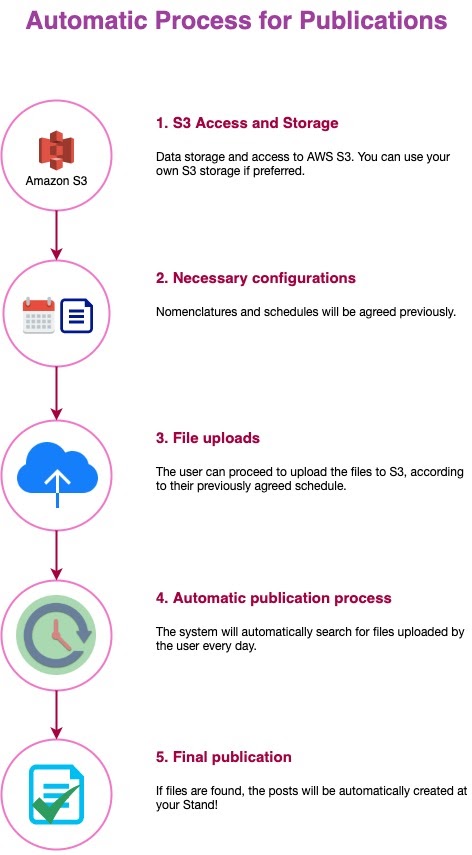
A scheduled automation publishes PDF editions from a folder in an S3 bucket on a schedule you define, with no integration to build. Use it when you release on a predictable calendar (a daily newspaper, a weekly magazine) and prefer naming files to a convention over writing code.
For how this compares with the Content API and ONIX intake, see the content publishing overview.
Scheduled automations handle PDF files only. To publish EPUB or audiobook content, use the Content API v3.
Before you start
- A precise publishing calendar: time of day, days of the week, and the timezone those times are in.
- PDF files ready before each run, named with the edition date.
- A way to upload to S3 (your own client, script, or publishing tooling).
- The email addresses that should receive run reports.
Set up your automation
- Email [email protected] for access to the S3 bucket. We create credentials scoped to your automation and agree on the folder your files go in.
- Upload your files following the naming convention.
- Submit your configuration through this form, attaching the CSV described in configuration intake file.
Ask us for a manual run to verify the setup before the first scheduled one.
Name your files
By default we configure your automation to look for files named like this:
prefix-yymmdd-xxx.pdf
| Segment | Meaning |
|---|---|
prefix | Short name for the edition or group of files, for example diario-dia. |
yymmdd | Edition date, two digits each for year, month, and day. 220824 is August 24, 2022. |
xxx | Page number when the edition is split across files, for example 001. Use 000 for one file holding the whole edition. |
One file per page:
diario-dia-220824-001.pdfdiario-dia-220824-002.pdfdiario-dia-220824-003.pdf
A single complete file:
diario-dia-220824-000.pdf
Files matching the same run are merged into one PDF product, one page per file, in page-number order.
The matching pattern is configured per automation. If your files already follow a different naming scheme, tell support what it looks like and we can match that instead of you renaming files.
Configuration reference
Support sets everything below from the configuration you submit, and changes it on request.
Schedule and target date
Runs fire on a schedule expressed in your automation's own timezone, and we can also trigger one manually. Each run resolves a single target date: today in that timezone, or tomorrow during an early access window. That date drives two things:
- Which files it looks for. The date formatted
yymmddmust appear in the file names. - Which configuration applies. The weekday of that date selects it.
Per-day configurations
An automation holds one or more configurations. A single one always applies. With several, the automation uses the one whose schedule covers the target date's weekday, so your Sunday edition can carry a different title, different tags, or different Smart Zoom folders. If none covers that weekday, the run fails with a configuration error and publishes nothing.
File discovery
The automation lists the folder you agreed with us inside the S3 bucket, using credentials scoped to your automation, and selects the files matching the pattern for the target date. It ignores everything else. If nothing matches, it publishes nothing and finishes cleanly; see nothing published and no error arrived.
Publishing options
These apply to the product each run creates. Tell support which ones you want.
| Option | What it does |
|---|---|
| Report recipients | Addresses receiving every run report, successful or failed. Several are supported, so ask for everyone who needs to know that tonight's edition landed. |
| Publish offset | An offset in minutes applied to the product's publication date. |
| Preview | Whether the product is created in preview mode, and separately whether reading that preview requires signing in. |
| Collection tags | Tags applied to the product so it lands in the right collections in your store. |
| Smart Zoom XML folders | Folders holding your Smart Zoom XML and image files. Several are supported, and they are date-based like the PDF folder. See the XML reference. |
Configuration intake file
Attach a CSV with one row per product.
| Column | Description |
|---|---|
| Filename | A complete file name for one edition, as you upload it |
| Publication name | Title of the product |
| Folder | Folder holding the files, for example /diario-dia |
| Prefix | Prefix shared by the product's files |
| Edition | Name of the edition |
| Publishing time | Time of day the automation runs |
| Publish Days | Days of the week it runs |
| Early Access from | Start of the early access window, HH:MM. Optional. |
| Early Access to | End of the early access window, HH:MM. Optional. |
Publishing time and Publish Days become the schedule; we translate them to a crontab expression. Submit your timezone with the file so we set that schedule in the right one.
Early access
Early access is a configuration option, not a separate setup. It publishes tomorrow's edition tonight, for an audience you release to ahead of the regular time. Turn it on with Early Access from and Early Access to in your configuration file.
A run firing inside that window adds one day to its target date. Runs outside it target today's edition as usual. Because the date moves, two things move with it:
- The files carry tomorrow's date. A run at 16:00 on Saturday August 23, inside a 15:00 to 19:00 window, looks for
diario-dia-220824-*.pdf, not220823. Upload that edition before the window opens. - The next day's configuration applies. Selection follows the weekday of the resolved date, so a Saturday early access run uses your Sunday configuration, with Sunday's title, tags, and Smart Zoom folders.
This is the main gotcha. An early access run uses the following day's configuration, and fails with a configuration error if no configuration covers that day. Confirm the days you publish ahead into are covered.
Update a published product
Ask support for a manual run against a date that is already published. The run matches the same files and updates the existing product instead of creating a second one, which is how you correct an edition you have already shipped.
Smart Zoom articles are the exception. They are created only on a product's first publication; a re-run never re-creates or updates them. If the articles in a published edition are wrong, contact support.
Troubleshooting
Nothing published and no error arrived
The most common reason an expected edition does not appear: no file matched the pattern for the target date. The automation publishes nothing, finishes cleanly, and records that no files were found for that date. It does not fail loudly and it does not retry.
Check these, in order:
- The date in the file names. It must be the target date as
yymmdd, and tomorrow's date if the run fell inside an early access window. - Upload time. Files uploaded after the run fired wait for the next run.
- The folder. Files must sit in the folder configured for that automation, not a sibling or a subfolder.
- Timezone. The schedule resolves in the automation's timezone, which can land on a different calendar day than you expect.
- The rest of the name. A changed prefix, a missing page number, or an extension other than
.pdfprevents a match.
Every run records the pattern it looked for plus a sample of the file names actually present in the folder. If none of the above explains it, send support the date and the publication name.
Other symptoms
| Symptom | Cause and fix |
|---|---|
| The run failed with a configuration error | No configuration covers the target date's weekday. Add one, or extend an existing schedule. After an early access run, that weekday is the following day. |
| The wrong edition published | An early access window overlapping your publishing time makes a run target tomorrow. Compare Publishing time against the window and ask support to move it. |
| Only one person receives reports | Report recipients accepts several addresses. Ask support to add the rest. |
| Readers cannot see the product | Preview mode, a preview that requires sign-in, or collection tags that keep it out of the collections readers browse. |
| The publication date differs from the run time | A publish offset in minutes applies to it. Ask support for the current value. |
| Pages merged in the wrong order | Order follows the page number in the names. Check for gaps, duplicates, or mixed digit counts such as 01 beside 001. |
| Smart Zoom articles missing after republishing | Expected behavior; see update a published product. |
| EPUB or audio files never publish | PDF only. Use the Content API v3. |
Related
- Content publishing overview: choosing among the three publishing paths.
- Smart Zoom articles XML reference: XML format and folder convention.
- Content API v3: EPUB, audiobooks, real-time publishing.
- [email protected]: bucket access, configuration changes, manual runs.